Reset a forgotten password
Get an email that lets you choose a new password.
Where
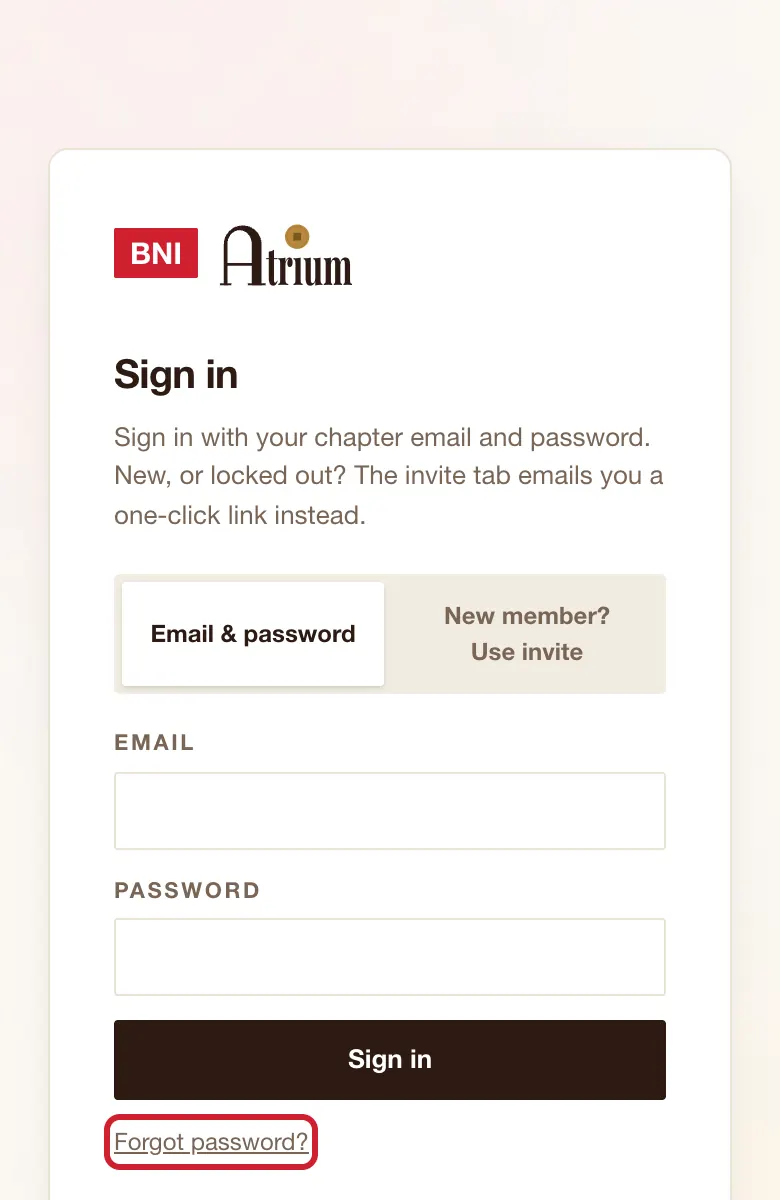
Sign in page, then Forgot password?.
What to do
- Tap Forgot password?.
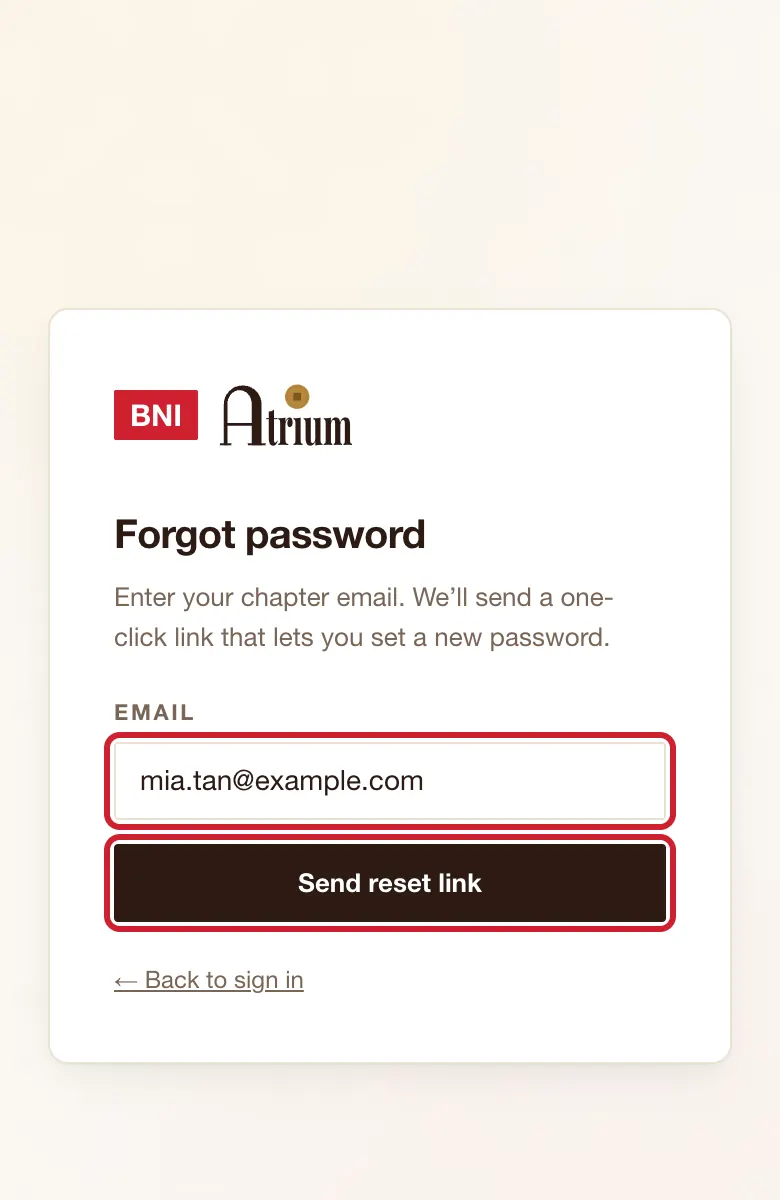
- Type your Email and tap Send reset link.
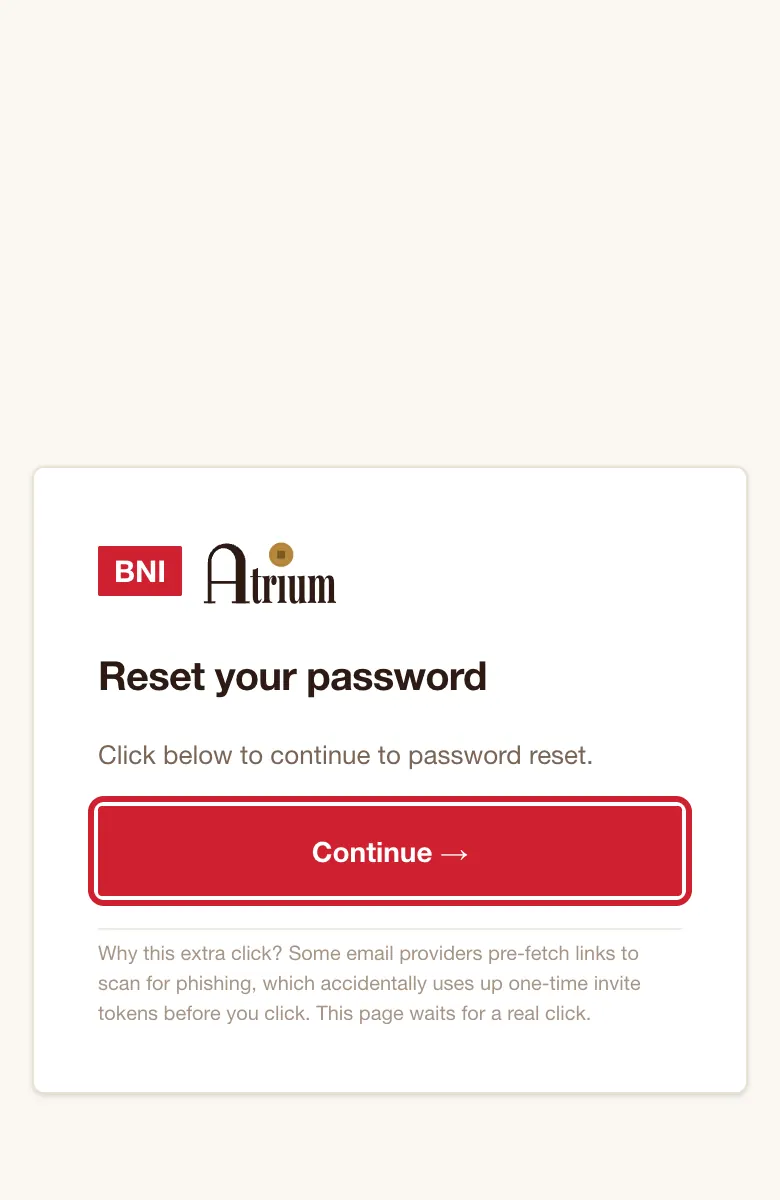
- Open the email and tap its button. On Reset your password, tap Continue →.
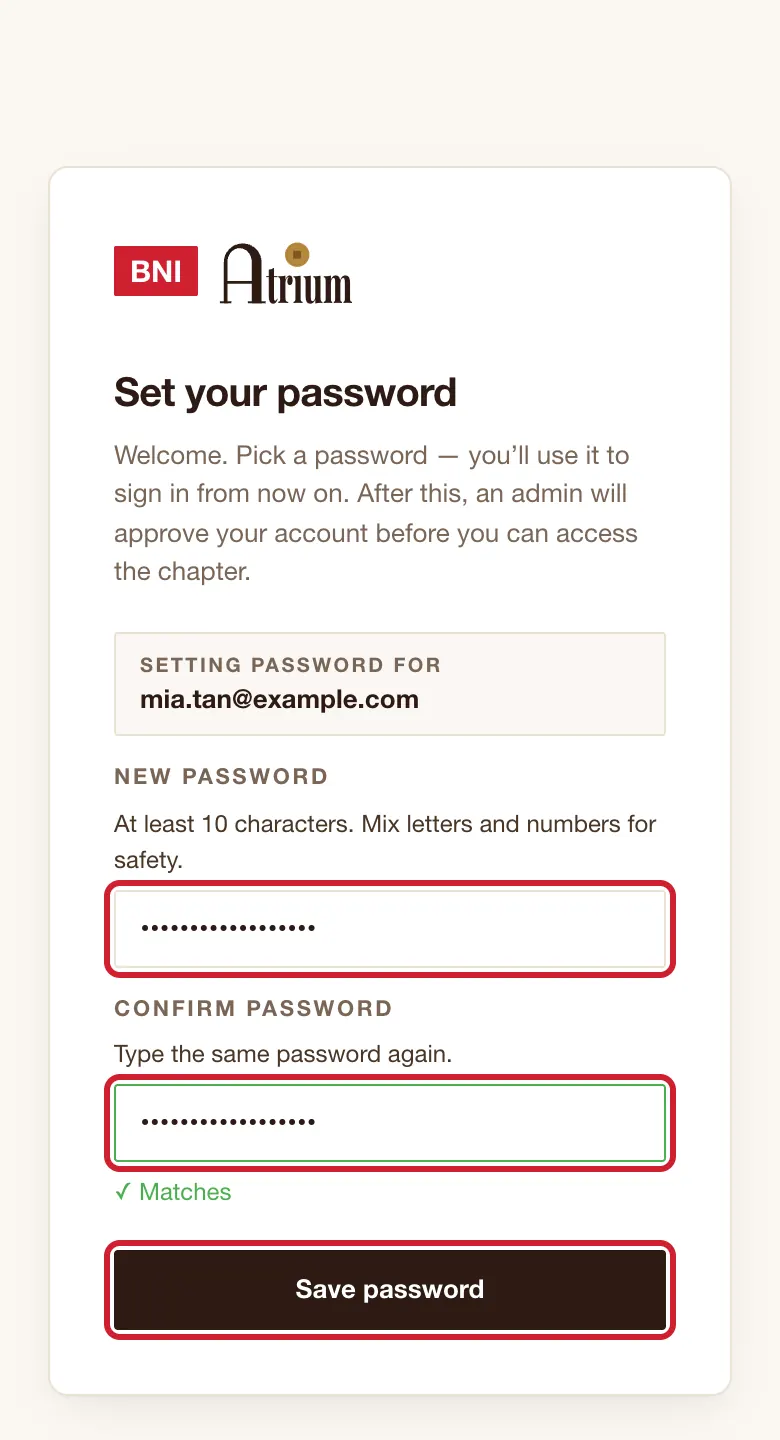
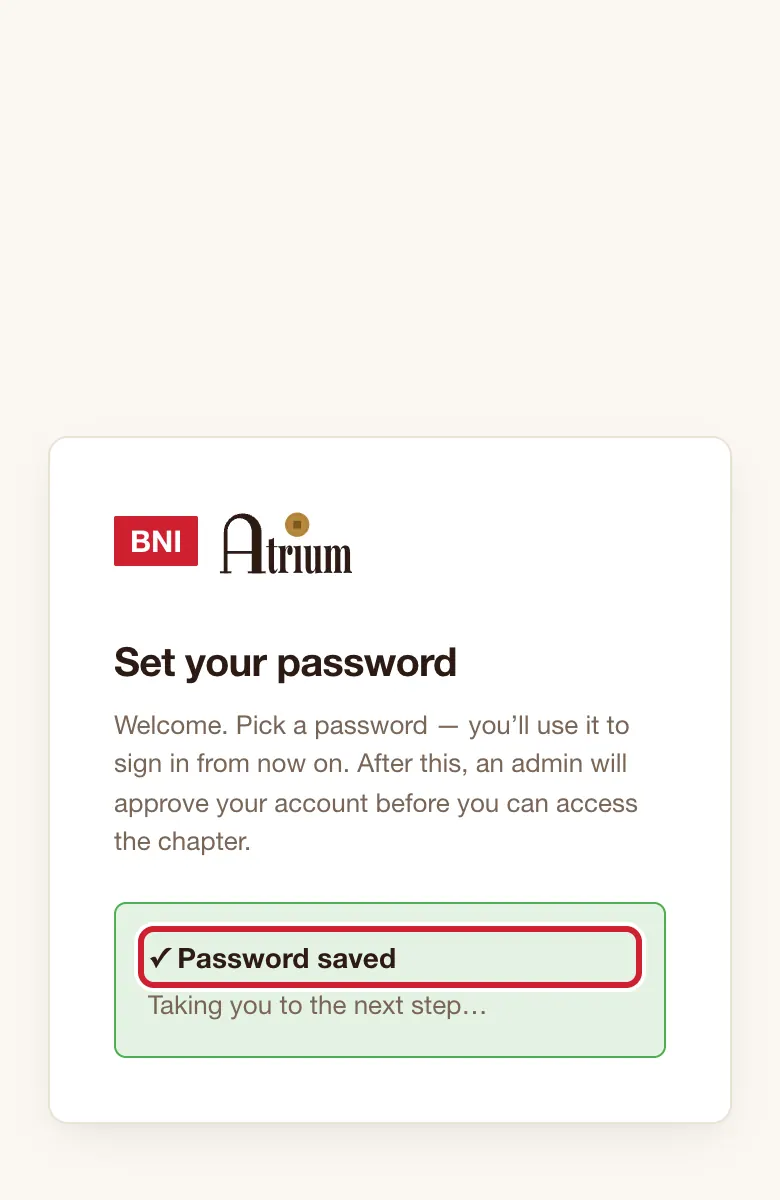
- On Set your password, fill in New password and Confirm password, then tap Save password.
What you’ll see
You see ✓ Password saved, then Home. The first screen says a link is on its way whether or not the email is known, so check you typed the right address.
Good to know
- Ignore the line on that page that says an admin will approve you. It shows to everyone. If you are already approved you may see Waiting for admin approval for a few seconds, then Home opens by itself.
- No email? Check your spam folder, then try again. Links work once and don't last long.
If the screen says
This link is invalid or expired.
Tap reset your password on that page to start again. Open the newest email straight away.
We couldn't send this email. Ask your chapter admin for a temporary password.
Do that. Atrium may have reached its daily email limit, which resets at 8am.
Still stuck?