Sign in with a temporary password
A spare password from your chapter admin, for when email isn't getting through.
Where
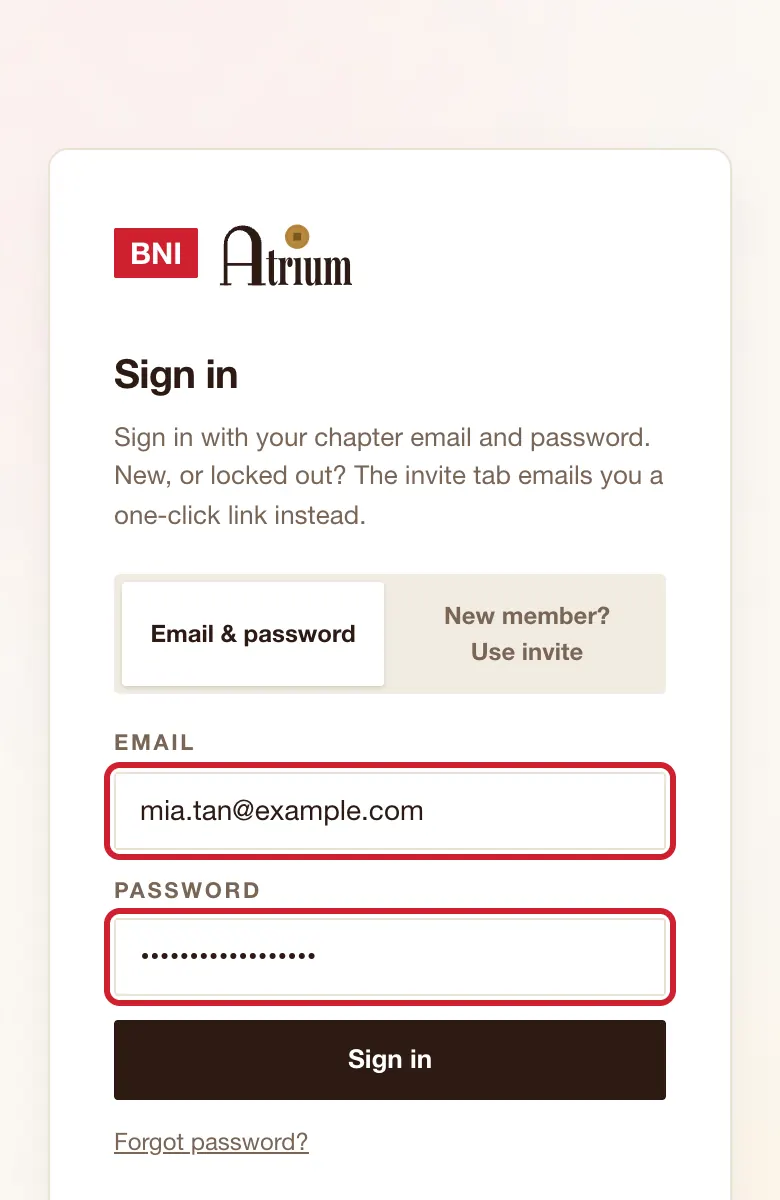
The normal Sign in page.
What to do
- Ask your chapter admin for a temporary password. They send it to you privately.
- Type your email and the temporary password in the normal Email and Password boxes.
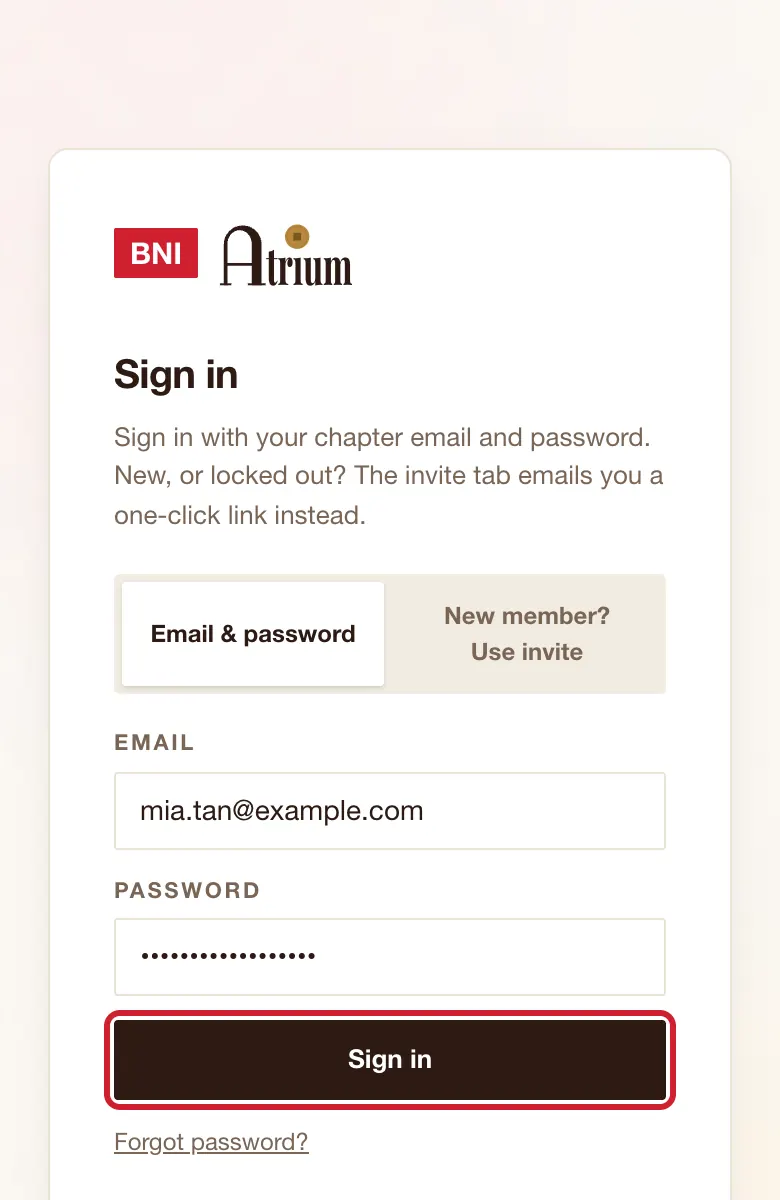
- Tap Sign in.
What you’ll see
Home opens. Nothing asks you to choose a new password.
Good to know
- It lasts 7 days, or until you set your own password. Your own password keeps working alongside it.
- To set your own, use Forgot password?. My profile has no change-password option.
- You must be approved first. Your admin can't issue one until then.
If the screen says
That password didn't work. If you recently reset, your browser might be autofilling the old one.
Retype it carefully. It may have expired, or 5 wrong tries may have locked it for 15 minutes. Wait, or ask your admin for a new one.
Still stuck?