Your first time on Atrium
From the invite email to your first check-in, step by step.
Where
You need your phone or computer, and the email address your chapter has for you. It takes about 5 minutes.
Get in
- Find the invite email from your chapter. If it isn't in your inbox, check your spam folder.
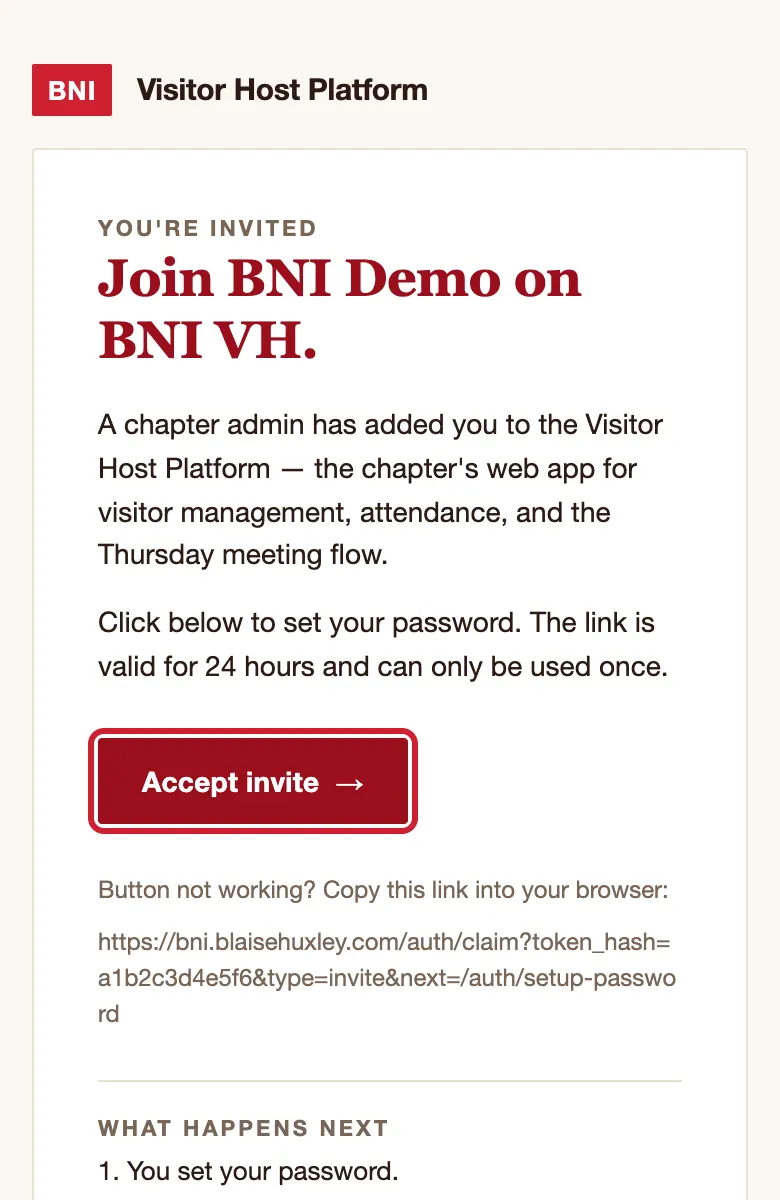
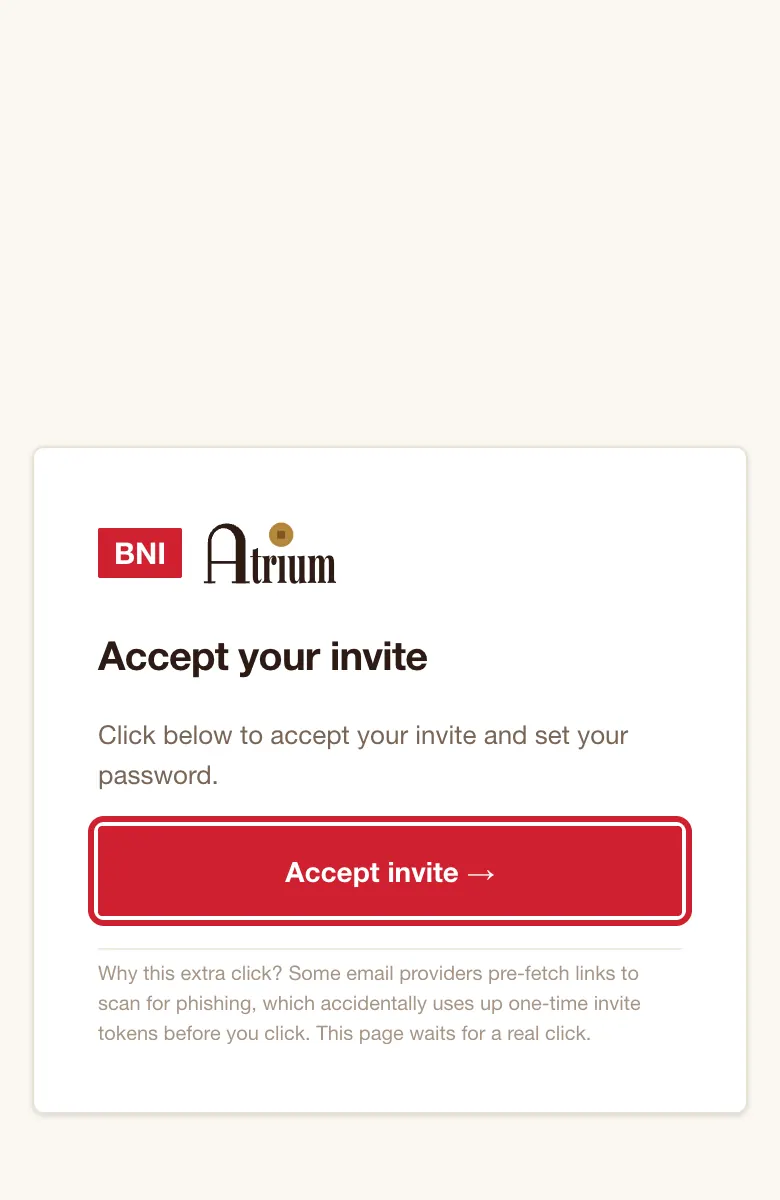
- Tap Accept invite in the email. On the page that opens, tap Accept invite →. The second tap is on purpose.
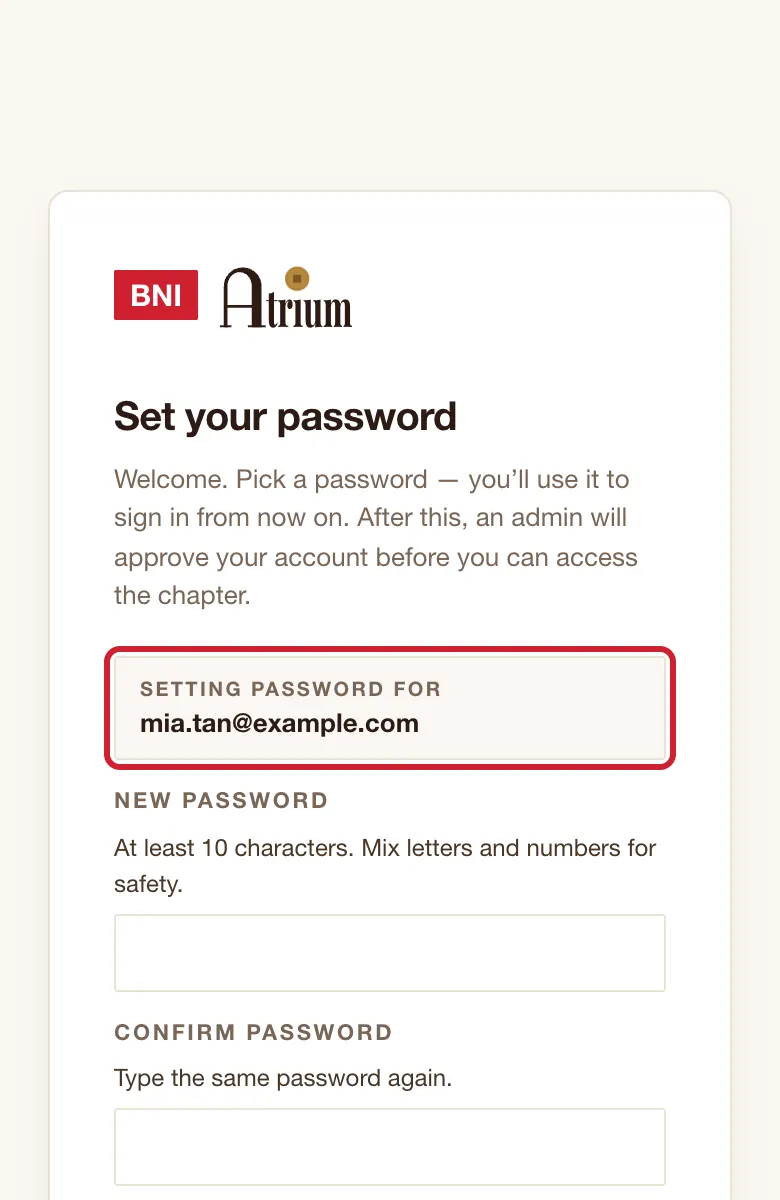
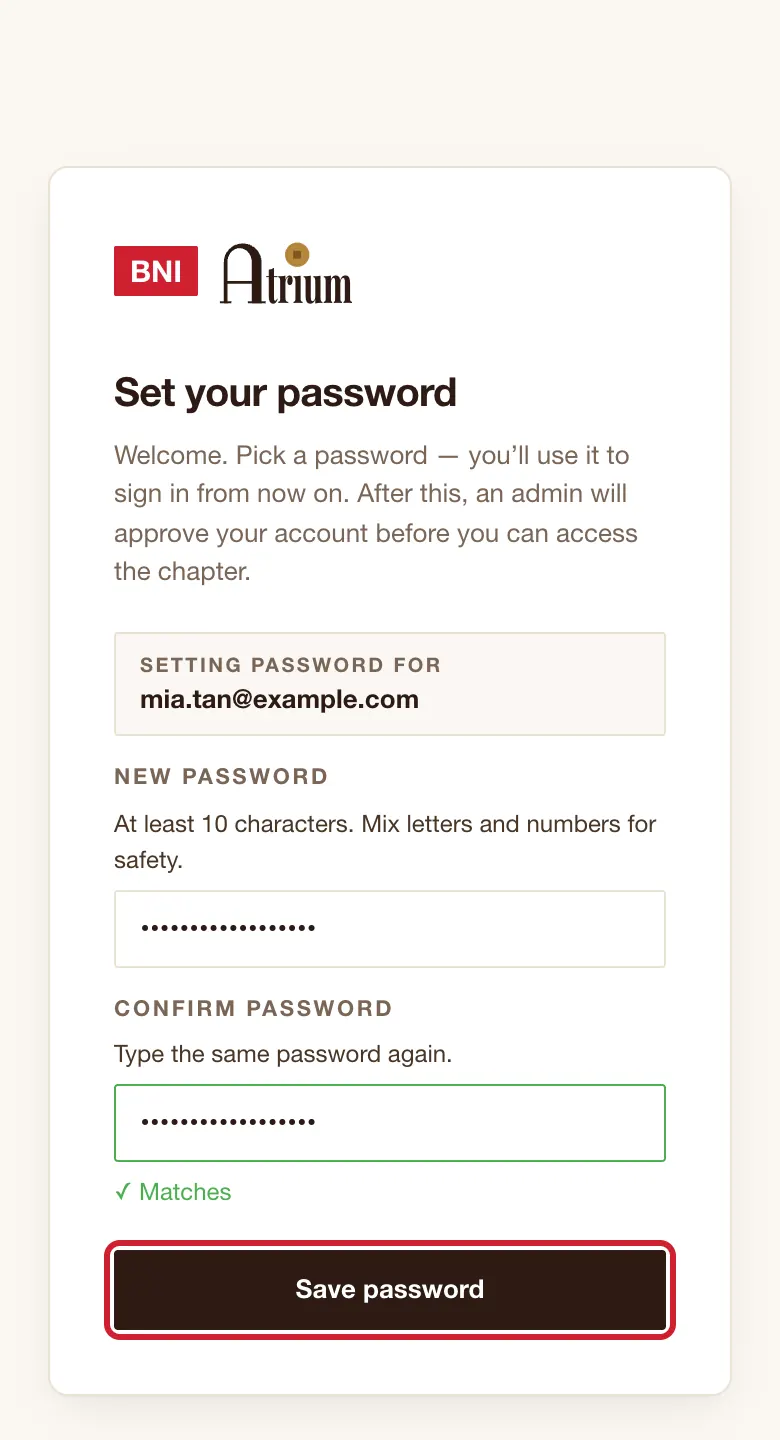
- On Set your password, check the box shows your own email.
- Choose a password of at least 10 characters, with capitals, small letters, a number and a symbol. Type it in New password and again in Confirm password.
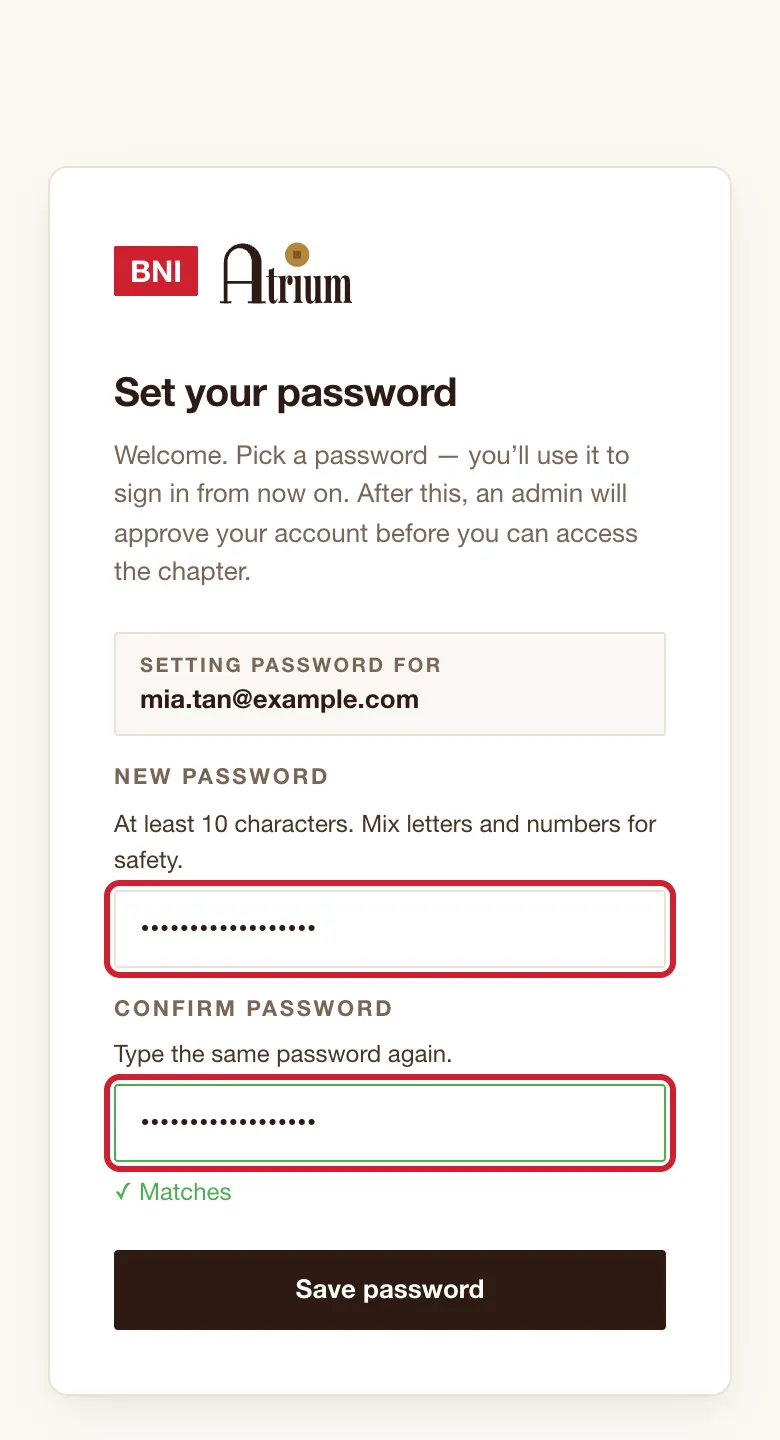
- Tap Save password.
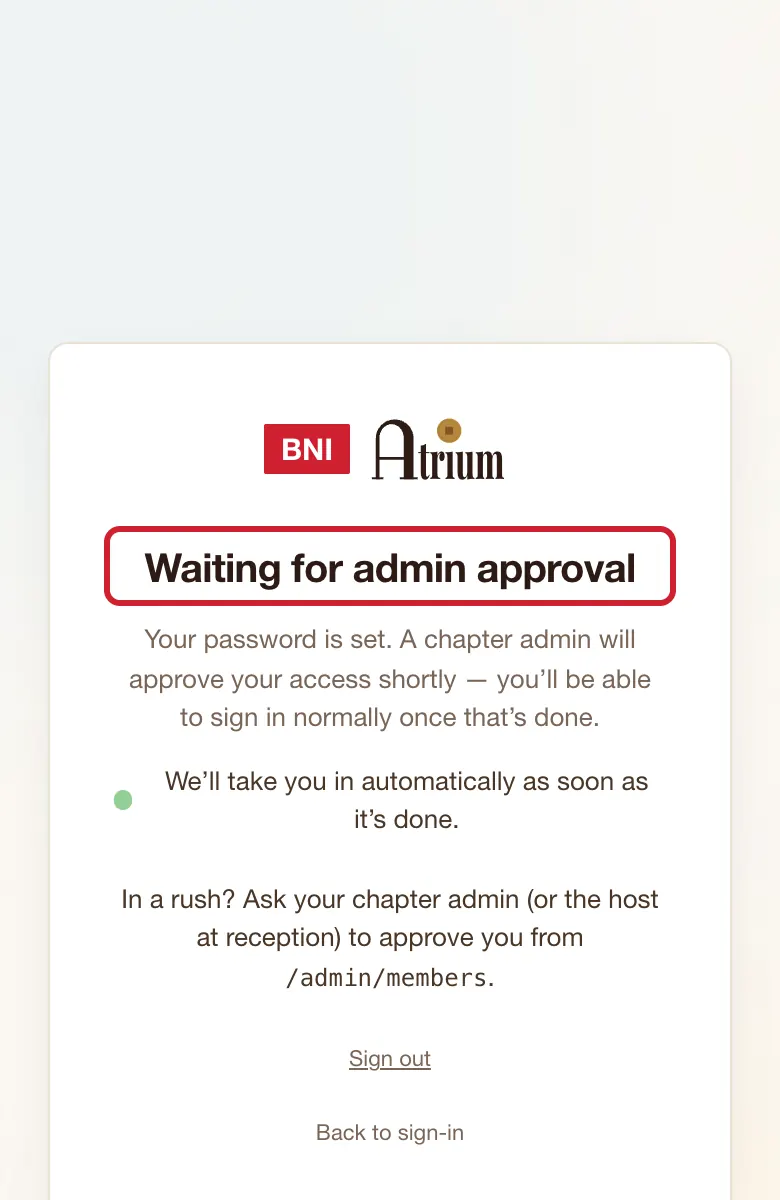
- Home opens within a few seconds. If you see Waiting for admin approval instead, leave the page open and ask your chapter admin to approve you. It moves on by itself.
Set up
- Put Atrium on your phone's home screen. iPhone: in Safari, tap Share, then Add to Home Screen. Android: in Chrome, open the menu, then Install app or Add to Home screen.
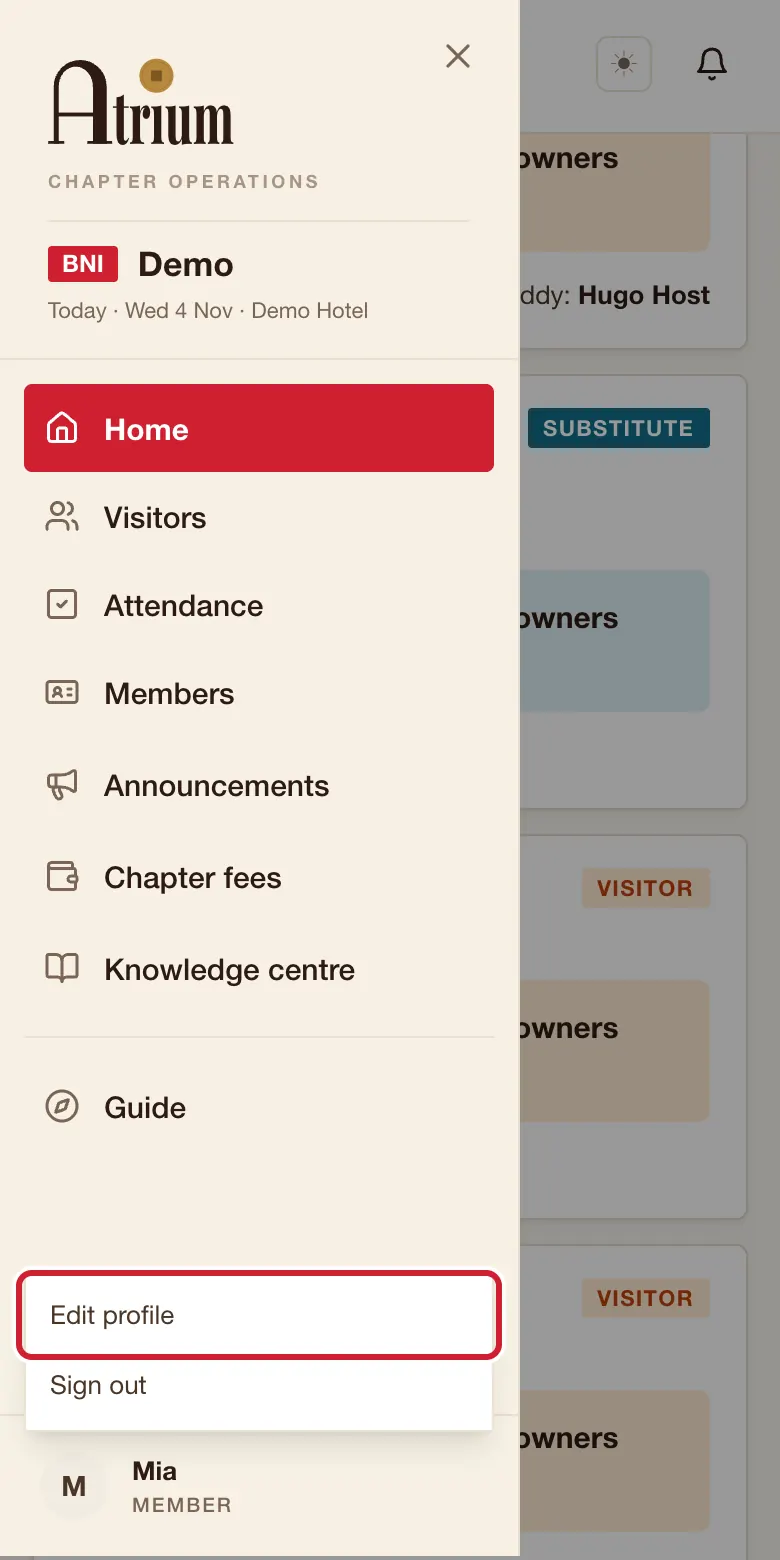
- Check your details. Open the menu, tap your name at the bottom, then Edit profile. Check your phone, business and one-line intro, then tap Save profile. Other members can see your phone and email, and visitors can see your intro.
Find your way
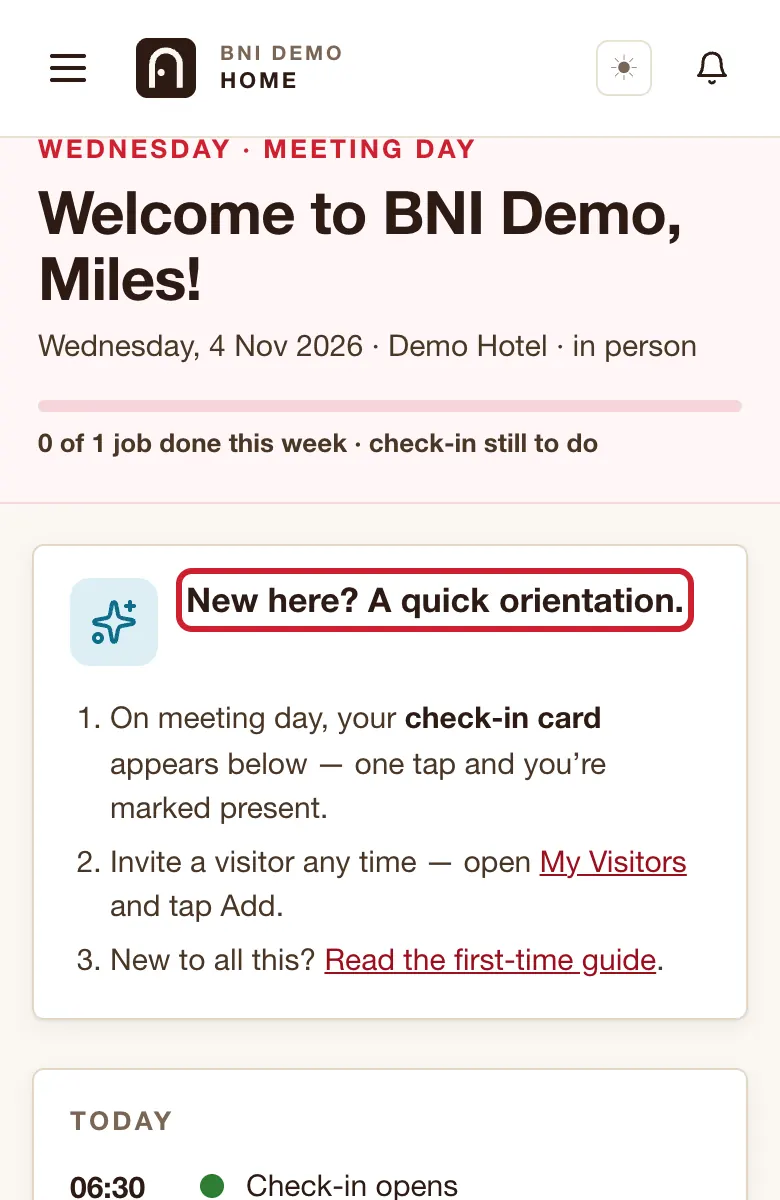
- Look round Home. It shows your week: your jobs, your check-in and who's visiting. New members also see New here? A quick orientation.
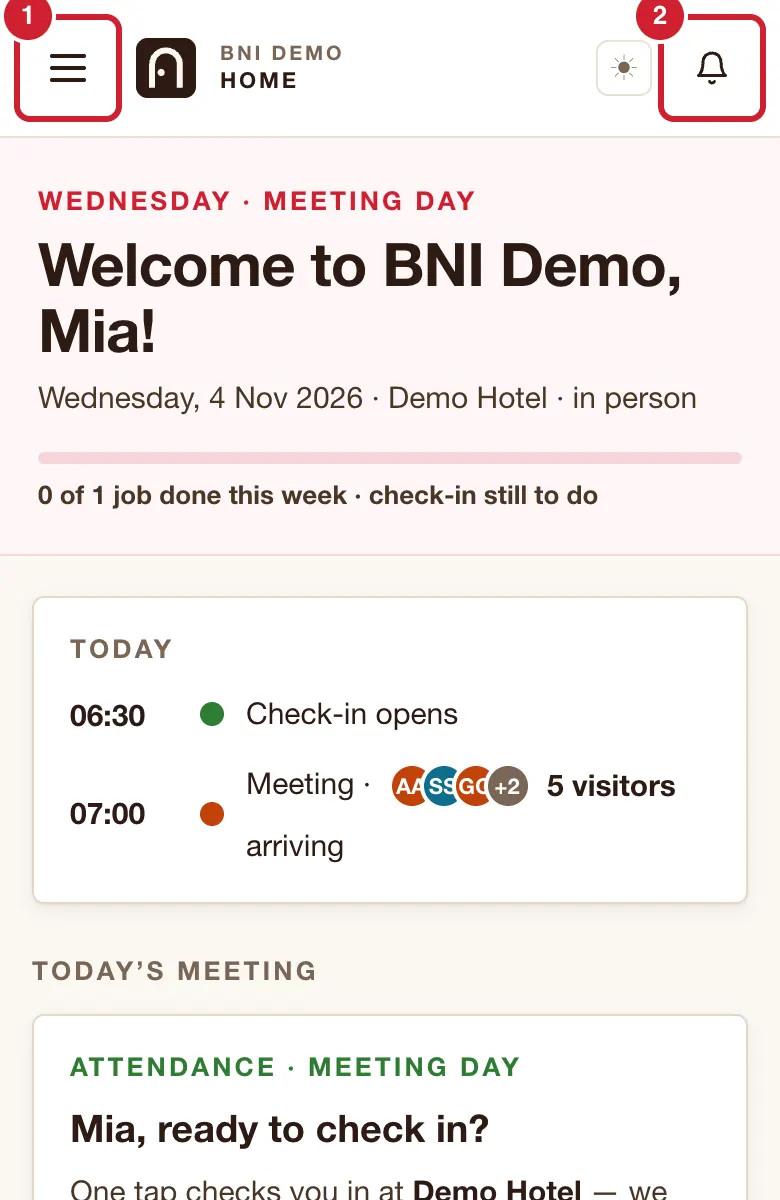
- On a phone, the three-line button at top left opens the menu. The bell at top right shows anything that needs you.
Your first meeting
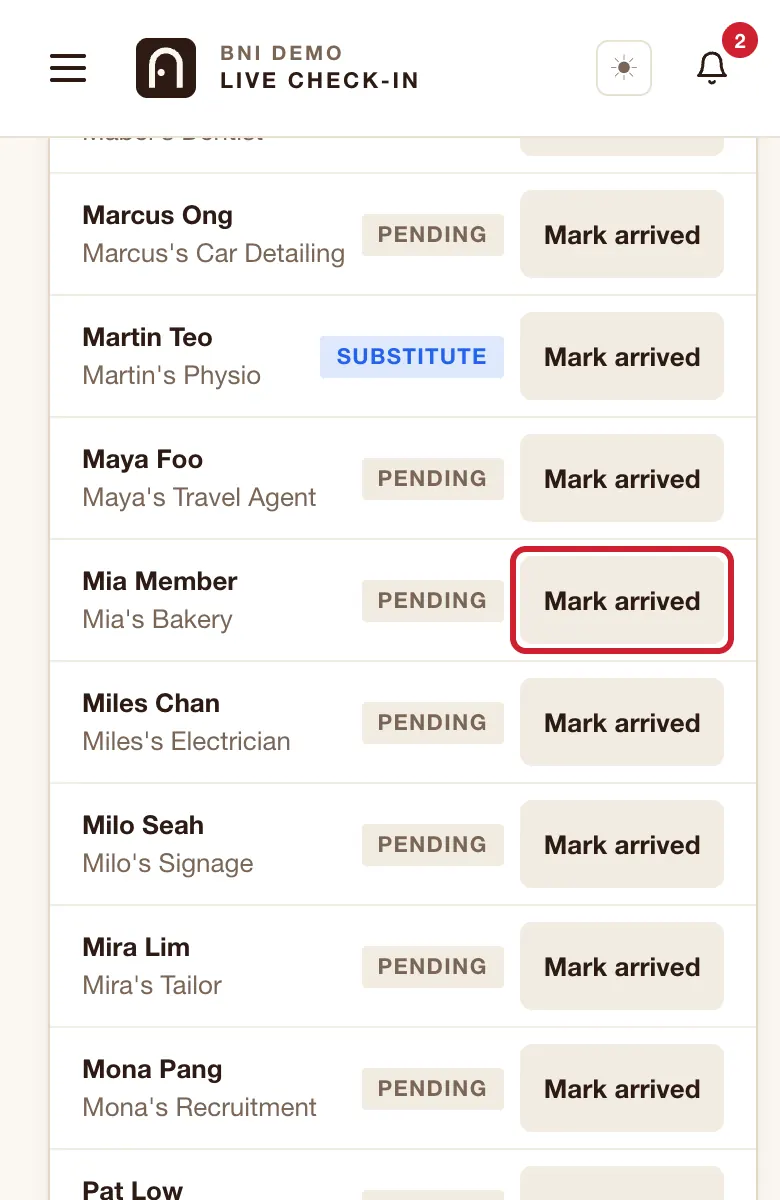
- Open Home when you arrive. Check-in opens at 6.30am, and you're Present if you check in before 8am.
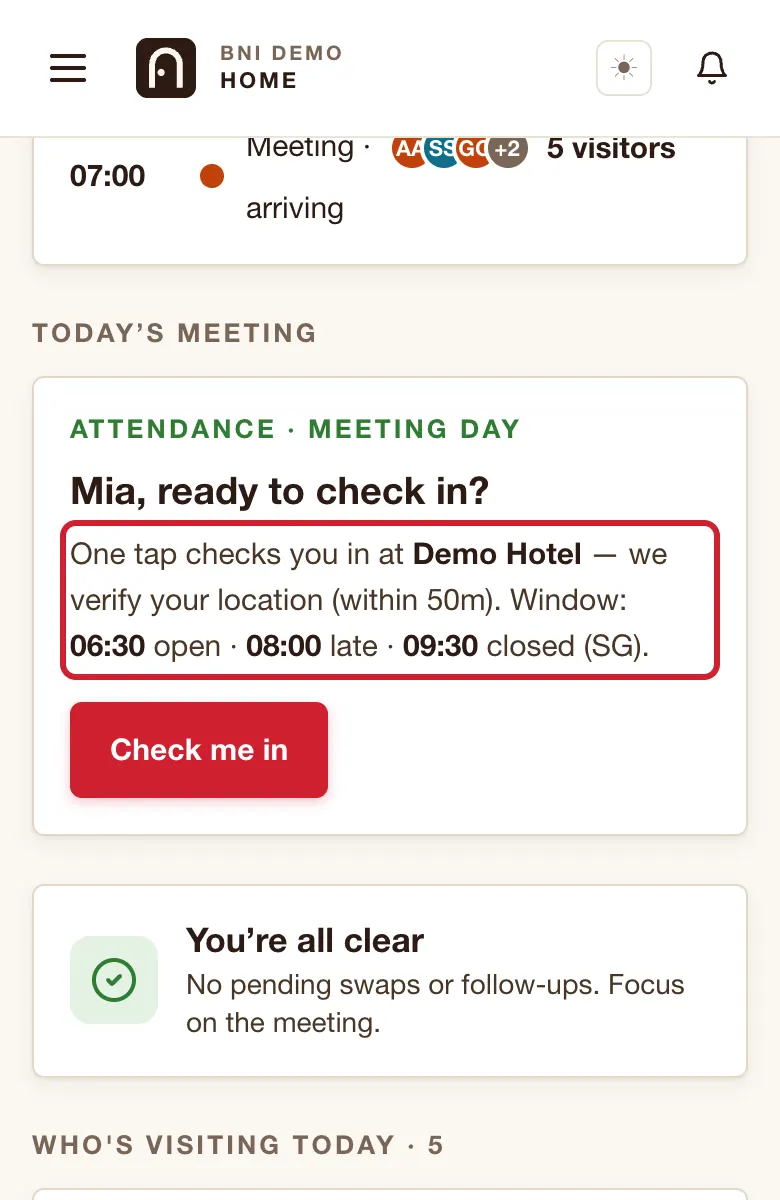
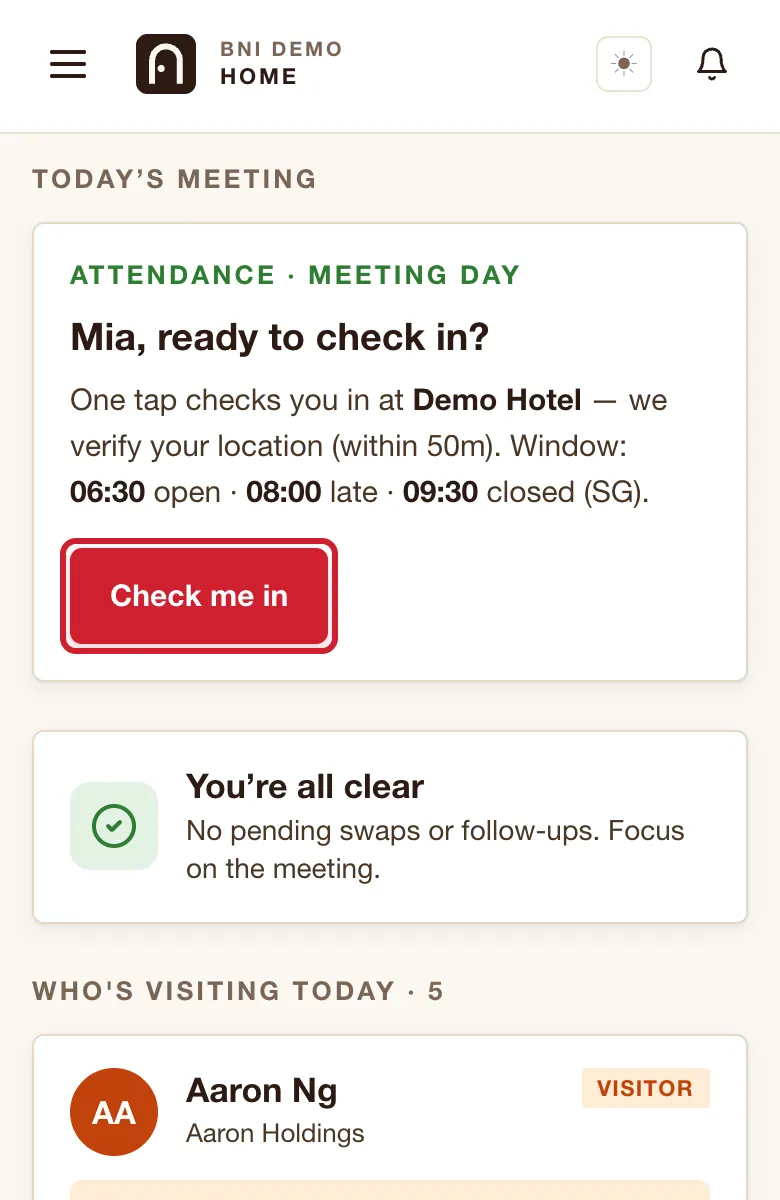
- In person: at the venue, tap Check me in, and allow your location if your phone asks.
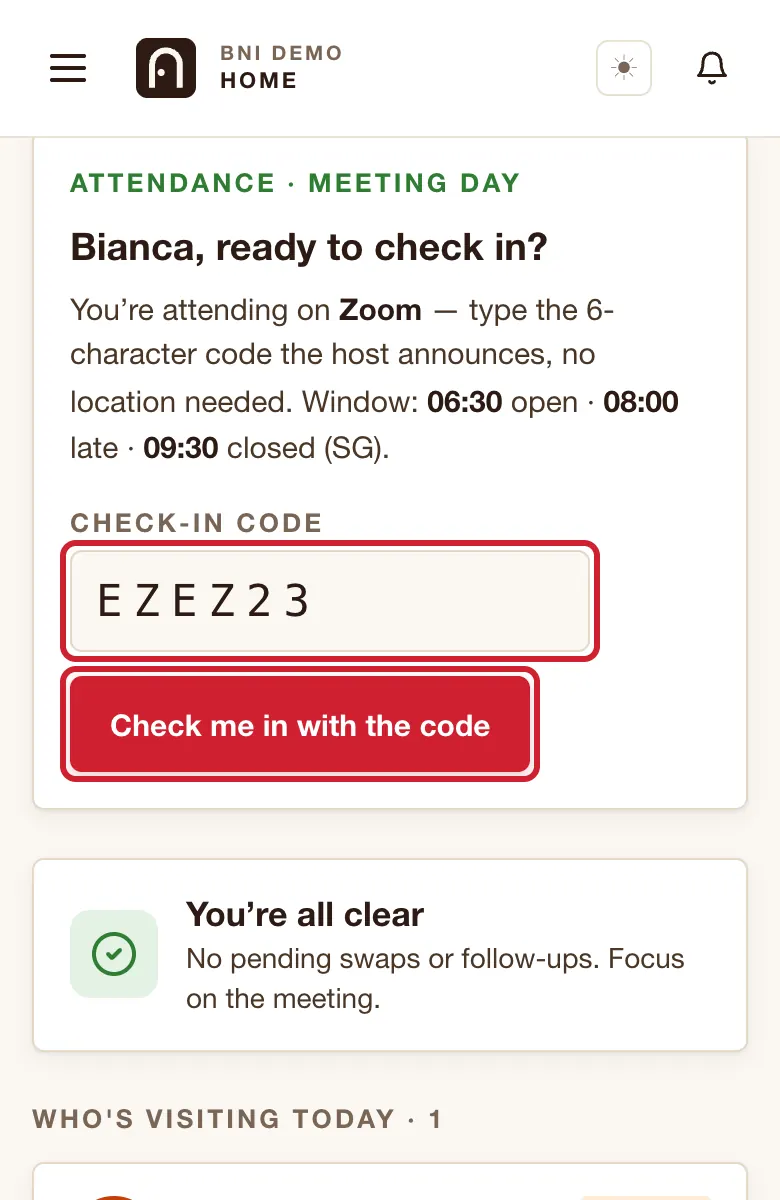
- On Zoom: type the 6-character code the host announces, then tap Check me in with the code.
- If it doesn't work, find a host at the door, or message the Zoom host. They can mark you in.
Good to know
- No invite email? Check spam, then ask your chapter admin to send it again. You can also tap New member? Use invite on the sign-in page and type your email, as long as it's the one your chapter has.
- Link not working on company email? Some company email systems use up one-time links. Ask for a fresh one, or ask your chapter admin for a temporary password.
- Had an Atrium account before? No invite comes. Sign in with your old password, or use Forgot password?.
- Given a temporary password? Type it in the normal Password box on the sign-in page. You must be approved first. It lasts 7 days, so use Forgot password? to set your own.
- Given a team job? Pick your role under "Show the guide for" to see what it involves. Your extra pages appear in the menu by themselves.
- The email may use an older name, such as "BNI VH", rather than Atrium.
If the screen says
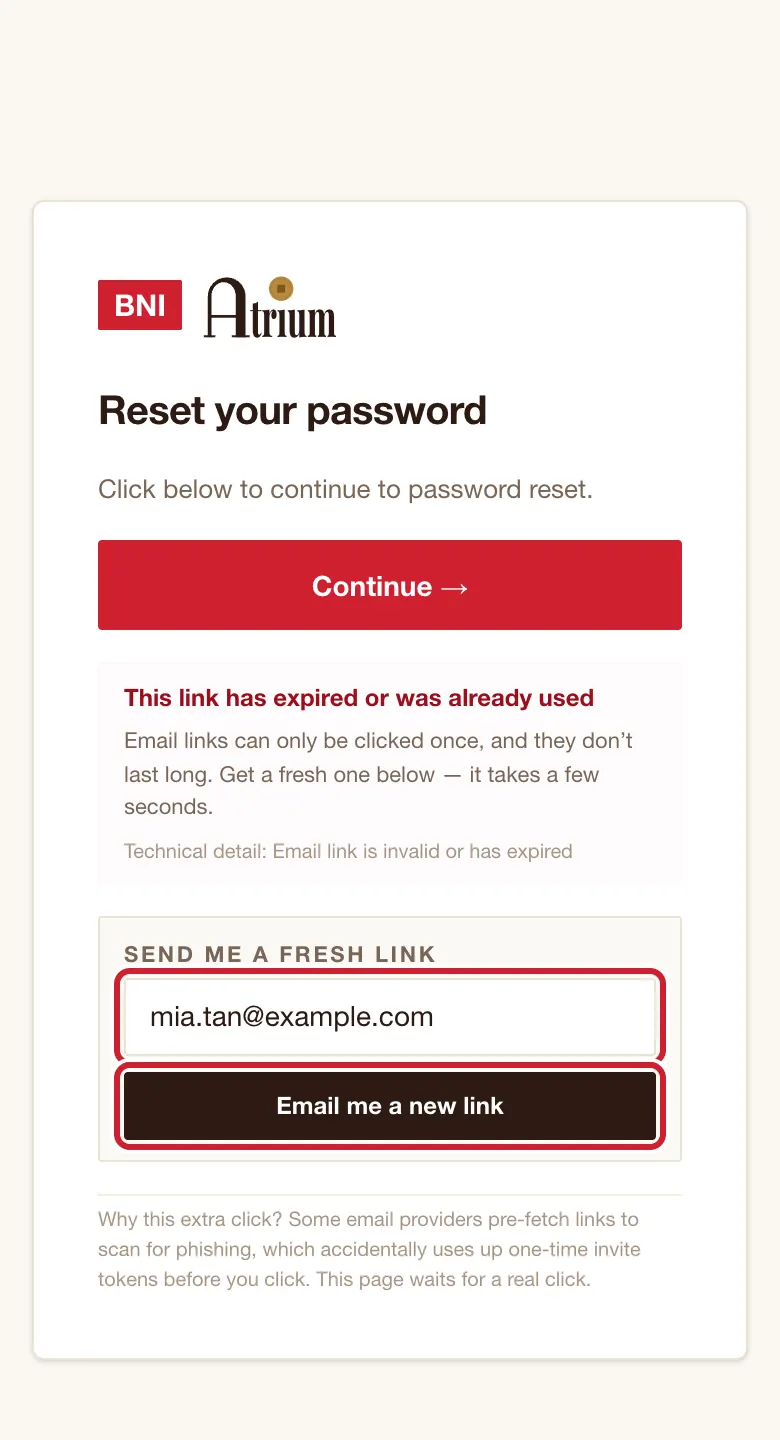
This link has expired or was already used
Type your email under Send me a fresh link and tap Email me a new link. The new email is a password reset email, which is normal. Open it straight away.
Password must be at least 10 characters.
Make it longer.
Passwords don't match.
Retype both boxes.
You're signed in, but this email isn't linked to a member account yet.
You may have used a different email from the one your chapter has. Check with your chapter admin.
We couldn't send this email. Ask your chapter admin for a temporary password.
Do that. Atrium may have reached its daily email limit, which resets at 8am.
Related
Still stuck?